
Making Screenshots in Linux Using Terminal - Part 1
Using the xwd command
If our Linux OS is using the X Window System, we can use the xwd (X window dump) command there to make screenshots. This command is part of a package called x11-apps. Under Debian-based operating systems 🔗, like Ubuntu, we can run sudo apt install x11-apps to install it.
🚀 ~ xwd -out screenshot.xwdThe command above will provide us a pointer to select the window we want to make a screenshot of. The problem here is that when we have another window in the foreground, that window will be captured as well, as shown in the illustration.
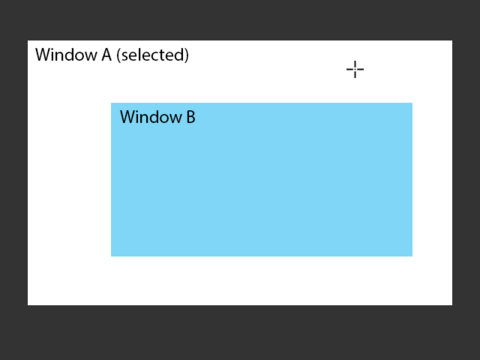
To avoid this, we can use the sleep command and have a delay before taking a screenshot to successfully minimize, close, or bring backward all other windows we don’t want to capture.
🚀 ~ sleep 5; xwd -out screenshot.xwdThe xwd command uses its own format for screenshots. We can convert .xwd to standard image formats by using a visual editor, like GIMP, or command-line tools, like the convert from ImageMagick.
🚀 ~ xwd -out screenshot.xwd
🚀 ~ convert screenshot.xwd screenshot.jpg
By default, xwd will not include the window frame. To make it shown, we must use the frame flag, like this:
🚀 ~ xwd -frame -out screenshot.xwd
And, finally, to make a screenshot of the entire screen with all windows, we should use the root flag. All frames of all windows will be included in this case. There’s no need to specify the frame flag when using the command with the root flag.
🚀 ~ xwd -root -out screenshot.xwdIt’s important to mention that the xwd command doesn’t talk well or, sometimes, even allow window background transparency options. Keep this in mind when taking your screenshots with it. 🙂