
Making Screenshots in Linux Using Terminal - Part 2
In the previous part, we saw how to make screenshots in the terminal by using the xwd command. In this part, we’ll meet the import command.
Using the import command
The import command is part of imagemagick package. To install it, under Debian and Debian-based operating systems 🔗 you can run:
🚀 ~ sudo apt install imagemagickAs for xwd, import also relies on the X Window System.
🚀 ~ import window.pngThe command above will provide us a pointer to select the window we want to take a screenshot of. Unlike xwd, where the foreground windows were being captured as well, the import command will capture only the window we select, and even if there is another window in the foreground, it will be omitted. This is a big plus over xwd, if you think about it. 🙃
To include the window frame in the screenshot we use the frame flag again, like this:
🚀 ~ import -frame window.png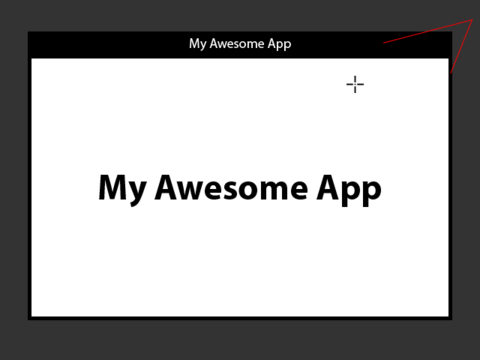
To make a screenshot of the entire screen we can use the window flag. Note: when using the window flag, we should provide a window id as well. In the example below, window id equals to root since we want to capture the whole screen.
🚀 ~ import -window root entire_screen.pngThe same result can be achieved by using the screen flag, this time with pointer need to be clicked somewhere on the screen (but NOT on the general OS menus at the top or bottom, etc):
🚀 ~ import -screen entire_screen.pngAnother big plus over xwd is that import supports window background transparency when capturing an entire screen.
Supported formats
Since import is part of ImageMagick, it supports numerous formats for the output file. Here are some of them:
- image/png
- image/jpg
- image/jpeg
- image/webp (requires webp to be installed in your system, see deb 🔗 , see google devs 🔗.)
- image/xwd
- image/bmp
- image/gif
The full list of image formats ImageMagick supports can be found here:
🍰 The cherry on the cake: selecting a custom area to grab
It’s very common for a GUI client to have a way to select a custom area to grab when taking a screenshot. But for a CLI command, this is a really cool feature.
🚀 ~ import custom_area_screenshot.pngThe window pointer here is able to select a custom area of the screen as well. 😉
To be continued…